
What this tutorial covers
Quickly inspect interference parameters and intensity patterns on Android.
Before you start:You need access to the product and should ideally follow the tutorial using your own real parameters or data. The screenshots below were manually rematched to avoid the image/topic mismatches seen in the previous version.
Step-by-step workflow
1Open the module
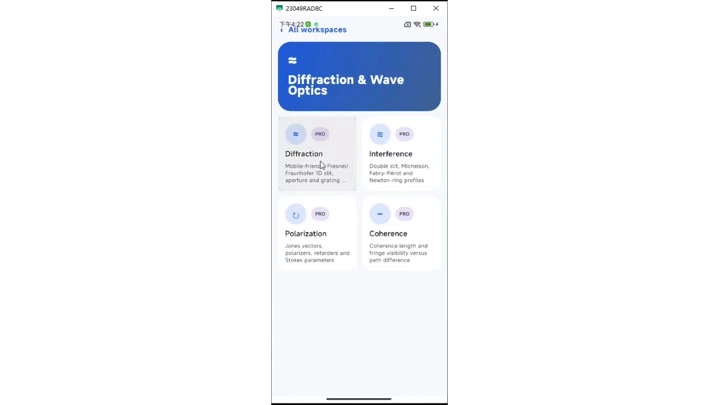
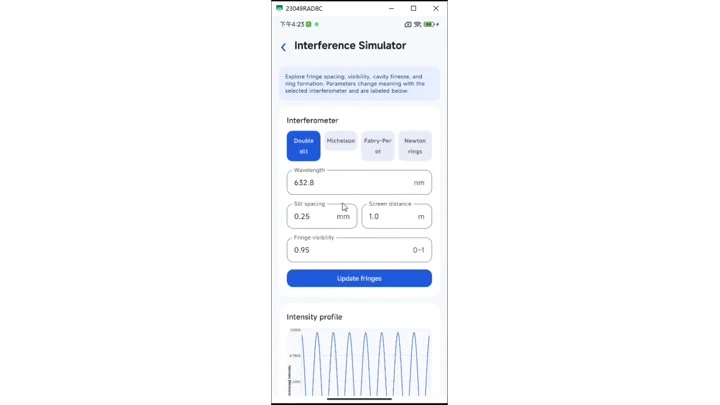
Open Interference Simulator from the wave-optics category. Confirm that the visible page really matches the tutorial topic before changing any settings.
2Configure the input
Prepare and check interference-related quantities such as intensity, phase and spacing.
3Run and watch the status
Adjust the parameters and refresh the simulated pattern. Watch the visible status, plot or log area while the workflow is running.
4Inspect the result
Pay special attention to the interference pattern together with the current input values.
5Verify and iterate
If the pattern barely changes, first check the parameter scale and units. Change one meaningful parameter and rerun so you can verify whether the output changes in the expected direction.
How to read the result
- The main output of this workflow is the interference pattern together with the current input values.
- Read the result together with the exact inputs used for the run; a screenshot alone rarely tells the whole story.
- If the pattern barely changes, first check the parameter scale and units.
Troubleshooting & practical tips
- If nothing changes, first confirm that the correct module is open.
- If the output looks unrealistic, check units, field mapping and input scale first.
- For comparisons, change one key parameter at a time whenever possible.